

Introduction
Azure Logic Apps Standard has long been a preferred choice for orchestrating workflows and integrating systems using a low-code approach. However, developers often encounter limitations when trying to implement complex transformations using only built-in actions and connectors.
The Inline Code feature, available exclusively in Logic Apps Standard that addressed this gap by allowing you to embed JavaScript, C#, or PowerShell (preview) directly within your workflows. This capability enables more flexible and intelligent logic, often eliminating the need for external services like Azure Functions.
Why Inline Code Makes a Difference in Real Projects?
- Native Language Support: Run JavaScript or C# directly in the workflow (PowerShell in preview).
- No External Hosting: Avoid maintaining Azure Functions for small, self-contained tasks.
- Faster debugging: Inspect inputs/outputs and failures in run history.
- Powerful Logic & Transformations: Easily implement loops, arrays, calculations, string operations, and conditionals.
- Simplified Architecture: Reduce external dependencies, keeping all transformation logic in one workflow.
- Cost-Effective: No extra Function execution charges; runs within the Logic App’s plan resources.
- Easy Maintenance: Update inline code without touching other workflow components.
Example: Transforming Order Data Using Inline JavaScript
Let’s explore a practical scenario where Inline Code streamlines transformation logic in Azure Logic Apps.
Suppose your system receives order data via an HTTP POST request. The goal is to process and enrich the order within a single Logic App, without relying on Azure Functions.
Step-by-Step Implementation
- Create a Stateful Workflow: Begin by creating a stateful Logic App in Azure. This ensures that trigger and run histories are retained, making it easier to monitor, debug, and audit workflow executions.
- Add an HTTP Trigger: Use an HTTP POST trigger to receive incoming JSON payloads representing order details.
- Insert Inline JavaScript Code: Add an Inline Code action using JavaScript to handle the transformation logic. This will:
- Calculate the total order amount and total weight
- Filter and identify active items
- Determine the order type (Domestic, Export, International)
- Format and concatenate item codes
- Apply discount rules based on order amount
- Map delivery mode to the corresponding internal transport code
- Send the Transformed Output: Use a Response action to return the newly structured and enriched JSON object as the final output of the workflow.
Workflow Execution with Inline JavaScript Logic
The Inline Code feature, available exclusively in Logic Apps Standard that addressed this gap by allowing you to embed JavaScript, C#, or PowerShell (preview) directly within your workflows. This capability enables more flexible and intelligent logic, often eliminating the need for external services like Azure Functions.
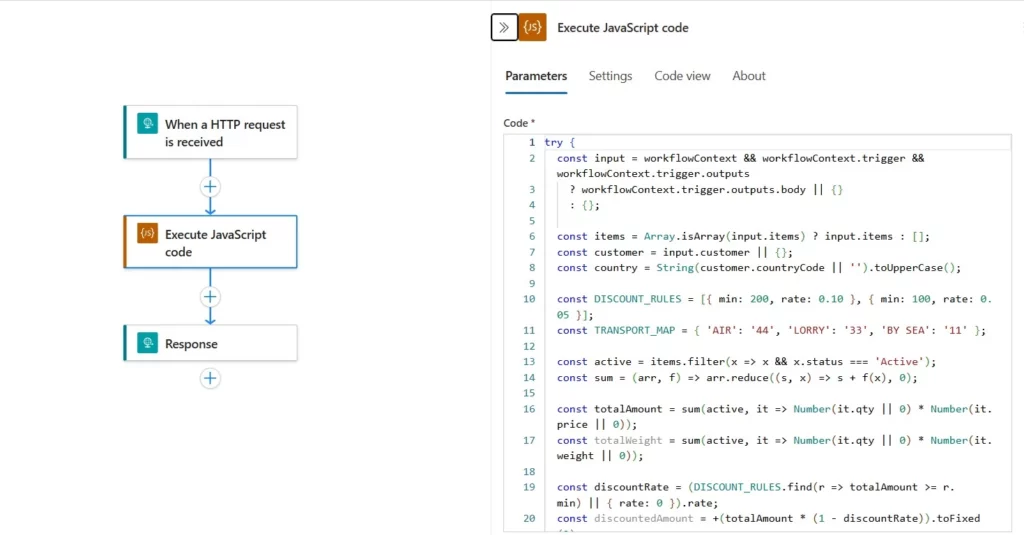
JavaScript Logic in Inline Code
try {
const input = workflowContext && workflowContext.trigger && workflowContext.trigger.outputs
? workflowContext.trigger.outputs.body || {}
: {};

const items = Array.isArray(input.items) ? input.items : [];
const customer = input.customer || {};
const country = String(customer.countryCode || '').toUpperCase();

const DISCOUNT_RULES = [{ min: 200, rate: 0.10 }, { min: 100, rate: 0.05 }];
const TRANSPORT_MAP = { 'AIR': '44', 'LORRY': '33', 'BY SEA': '11' };

const active = items.filter(x => x && x.status === 'Active');
const sum = (arr, f) => arr.reduce((s, x) => s + f(x), 0);

const totalAmount = sum(active, it => Number(it.qty || 0) * Number(it.price || 0));
const totalWeight = sum(active, it => Number(it.qty || 0) * Number(it.weight || 0));

const discountRate = (DISCOUNT_RULES.find(r => totalAmount >= r.min) || { rate: 0 }).rate;
const discountedAmount = +(totalAmount * (1 - discountRate)).toFixed(2);

const orderType = country === 'IN'
? 'Domestic'
: ['US', 'UK', 'AU'].includes(country) ? 'Export' : 'International';

const itemCodes = active.map(it => it.code).filter(Boolean).join(',');
const formattedDate = new Date(input.orderDate || Date.now()).toISOString().split('T')[0];
const transportCode = TRANSPORT_MAP[(String(input.deliveryMode || '').toUpperCase())] || '00';

return {
orderId: input.orderId || null,
customerName: customer.name || null,
email: customer.email || 'not_provided(at)example.com',
country,
orderType,
totalAmount: +totalAmount.toFixed(2),
discountRate,
discountedAmount,
totalWeight: +totalWeight.toFixed(2),
activeItemCodes: itemCodes,
itemCount: active.length,
deliveryMode: input.deliveryMode || null,
transportCode,
orderDate: formattedDate,
processedAt: new Date().toISOString()
};
} catch (err) {
return {
error: true,
message: 'Unexpected error',
correlationId: workflowContext && workflowContext.workflow && workflowContext.workflow.run
? workflowContext.workflow.run.name
: null
};
}
Testing the Logic App Workflow Using Postman
Once the Logic App is created with the HTTP trigger and an Inline JavaScript action, you can test it directly using Postman.
Below is a snapshot showing the input JSON payload sent via an HTTP POST request and the transformed output returned by the Logic App:
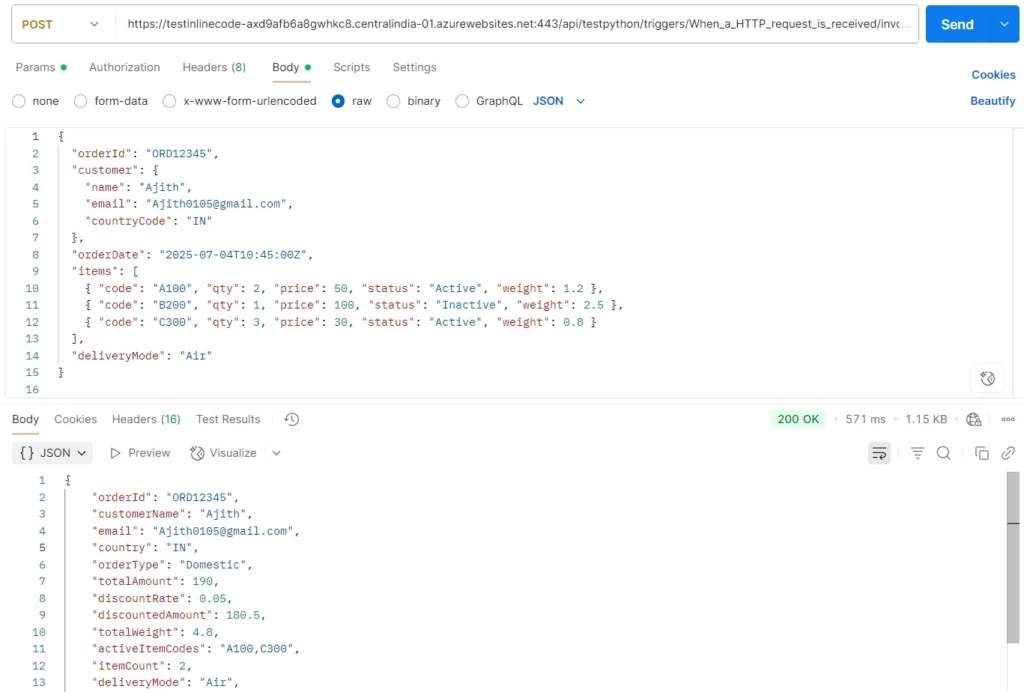
Input JSON Payload
{
"orderId": "ORD12345",
"customer": {
"name": "John Doe",
"email": "John.Doe(at)gmail.com",
"countryCode": "IN"
},
"orderDate": "2025-07-04T10:45:00Z",
"items": [
{ "code": "A100", "qty": 2, "price": 50, "status": "Active", "weight": 1.2 },
{ "code": "B200", "qty": 1, "price": 100, "status": "Inactive", "weight": 2.5 },
{ "code": "C300", "qty": 3, "price": 30, "status": "Active", "weight": 0.8 }
],
"deliveryMode": "Air"
}
Output JSON Response
{
"orderId": "ORD12345",
"customerName": "John Doe",
"email": "John.Doe(at)gmail.com",
"country": "IN",
"orderType": "Domestic",
"totalAmount": 190,
"discountRate": 0.05,
"discountedAmount": 180.5,
"totalWeight": 4.8,
"activeItemCodes": "A100,C300",
"itemCount": 2,
"deliveryMode": "Air",
"transportCode": "44",
"orderDate": "2025-07-04",
"processedAt": "2025-09-03T07:19:03.199Z"
}
Now that we have seen Inline Code in action, which option should you use for transformations – Inline Code, Liquid Templates, Data Mapper, or Azure Functions?
The table below compares setup, performance, complexity, and governance so you can pick the right tool for each scenario.
| Capability | Inline Code | Liquid Templates | Data Mapper | Azure Functions |
|---|---|---|---|---|
| Setup | None – directly in Logic Apps Standard designer | None | Created via visual designer | Requires separate deployment |
| Languages | JavaScript, C#, PowerShell (Preview) | Liquid only | Visual drag-and-drop mapping | Multiple: C#, JavaScript, Python, PowerShell, etc. |
| Performance / Latency | Runs in-process within the Logic App | Runs in-process | Runs in-process | Incur network hop latency |
| Dependencies | No external packages | N/A | N/A | Full dependency and NuGet/npm support |
| Transformation Complexity | Medium logic and conditional flows | Best for document format transformations | Complex schema-to-schema mappings | Any complexity, including advanced algorithms |
| Governance / Testing | Fully inside Logic App run history | Fully inside Logic App run history | Fully inside Logic App run history | Managed separately; needs dedicated test pipeline |
| Cost | No additional Function execution charges (runs within your Logic App plan) | No extra cost beyond Logic App run | No extra cost beyond Logic App run | Consumption-based or App Service plan billing |
Limits & Considerations of Azure Inline Code
- No External Package Support: Inline Code does not allow importing external libraries (e.g., NPM packages, NuGet). All logic must be implemented using built-in language features.
- Execution Boundaries: Subject to Logic App action timeouts, memory allocation, and payload size limits. Large outputs or long-running operations may need Azure Functions instead.
- Embedded in Workflow Definition: The code is stored inside the Logic App definition. Any code changes require redeployment of the Logic App, so plan a proper Dev → Test → Prod pipeline.
- Limited Language Options: Only JavaScript, C#, and PowerShell (Preview) are supported. Other languages like Python require external services such as Azure Functions.
- Single Action Scope: Inline Code executes within a single action; it can’t directly maintain state between runs or persist variables outside its scope without storing them in external storage.
- Monitoring & Troubleshooting: Inline Code does not provide a built-in debugger. Always log key variables, include a correlation ID in error messages, and send logs to Application Insights or Log Analytics.
Conclusion
The Inline Code feature in Azure Logic Apps Standard unlocks a new level of flexibility by enabling developers to write real code like JavaScript or C#, directly within workflows. This capability bridges the gap between low-code and pro-code, allowing more complex data transformations, business logic, and decision handling without relying on external services like Azure Functions.
By using Inline Code:
• You reduce costs by avoiding extra service calls.
• Improve performance by keeping logic in the same execution context.
• Simplify architecture by maintaining a logical and workflow-oriented approach.
While this example focused on JavaScript, you can implement the same logic in C# depending on your preference and team expertise.
For instance:
• Use C# for strong typing and enterprise-grade patterns.
As Logic Apps continue to evolve, features like Inline Code help teams build smarter, more maintainable, and production-ready integrations – all within a single visual workflow.
Frequently Asked Questions on Azure Logic Apps Inline Code
What is the Inline Code feature in Azure Logic Apps Standard?
Inline Code is a feature available exclusively in Azure Logic Apps Standard that allows you to embed JavaScript, C#, or PowerShell (preview) directly within your workflows. It enables complex transformations, business logic, and decision handling without relying on external services such as Azure Functions, keeping all logic within a single visual workflow.
Why would I use Inline Code instead of Azure Functions?
For small, self-contained tasks, Inline Code removes the need to maintain a separate Azure Functions deployment. It runs in-process within the Logic App, which avoids the network hop latency that Functions introduce. It also reduces costs because there are no additional Function execution charges, and all debugging and run history remain inside the Logic App itself.
Which programming languages does Inline Code support?
Currently, Inline Code supports JavaScript and C#. PowerShell is available in preview. Other languages such as Python are not supported within Inline Code and would require an external service like Azure Functions.
Can I use external libraries or packages inside Inline Code?
No. Inline Code does not support importing external libraries, whether NPM packages for JavaScript or NuGet packages for C#. All logic must be written using the built-in features of the chosen language. If your transformation requires third-party dependencies, Azure Functions is the more appropriate option.
What types of transformations is Inline Code best suited for?
Inline Code handles medium-complexity logic well, including conditional flows, loops, array operations, string formatting, calculations, and decision-based mappings. For straightforward document format transformations, Liquid Templates may be a simpler choice. For complex schema-to-schema mappings, Data Mapper is worth considering. For advanced algorithms or any complexity level, Azure Functions remains the most capable option.
How does Inline Code compare to Liquid Templates and Data Mapper?
All three run in-process within Logic Apps Standard and carry no additional execution costs. Liquid Templates are best for document format transformations. Data Mapper suits complex visual schema-to-schema mappings. Inline Code sits in between, offering real programmatic logic with conditionals and calculations, without requiring a separate deployment or external service.
Are there any execution limits I should be aware of?
Yes. Inline Code is subject to Logic App action timeouts, memory allocation limits, and payload size constraints. For long-running operations or workflows that produce very large outputs, Azure Functions may be a better fit. The code is also embedded within the workflow definition, so any changes require redeployment of the Logic App.
How do I debug or monitor Inline Code in production?
Inline Code does not have a built-in debugger. The recommended approach is to log key variables within the code, include a correlation ID in all error messages, and send logs to Application Insights or Log Analytics. Run history in the Logic App designer shows inputs and outputs for each action, which helps trace failures at the workflow level.
Can Inline Code maintain state between workflow runs?
Not directly. Inline Code executes within a single action scope and cannot persist variables outside that scope between runs. If your use case requires state to be carried across executions, you will need to store and retrieve that state using an external service such as Azure Storage or a database.
When should I choose C# over JavaScript for Inline Code?
Choose C# when your team prefers strong typing, enterprise-grade patterns, or when the logic aligns more naturally with .NET conventions. JavaScript is a good fit for lighter transformations, JSON manipulation, and teams more familiar with scripting. Both languages are functionally capable within the Inline Code action; the choice largely comes down to team expertise and coding standards.