
In the digital transformation era, identity and access management form the cornerstone of cloud security. Among these concepts, managed identities have emerged as an essential element for automating and securing service-to-service communications in Microsoft’s Azure platform. Managed identities for Azure resources are a feature that offers automatic management of identities in Azure Active Directory (AD). These identities authenticate to any service supporting Azure AD authentication without incorporating credentials into the code, enhancing security posture.
Managed identities come in two forms—system–assigned and User-assigned—each with unique capabilities and applications. This article explores these types, exploring their pros, cons, and use cases to help you navigate the Azure infrastructure effectively. We also provide a step-by-step guide to creating a managed identity key and using it to secure your Azure resources instead of conventional passwords.
By understanding and utilizing managed identities, you can streamline authentication processes, increase operational efficiency, and fortify the security within your Azure deployments. Stay tuned as we unlock the power of managed identities and demonstrate how to set them up for Azure SQL DB in Logic App using the identity key.
Managed Identity
Managed identities for Azure resources provide Azure services with the ability to automatically manage identities in Azure Active Directory. You can use this identity to authenticate to any service that supports Azure AD authentication without having credentials in your code.
Managed identities are service principals of a special type, which can only be used with Azure resources.
There are two types of managed identities:
1. System-assigned: Some Azure services allow you to enable a managed identity directly on a service instance. After a system-assigned managed identity is enabled, an identity develops in Azure AD, tied to that service instance’s lifecycle. When the resource is eliminated, Azure automatically deletes your identity. By design, only Azure resources can use this identity to request tokens from Azure AD.
Challenge: Connecting multiple resources using a single key (Identity) is impossible.
2. User-assigned: You may also create a managed identity as a standalone Azure resource. A user-assigned MI is for one or more instances of an Azure service. You can create a user-assigned managed identity and assign it to one or more instances of an Azure service.
Here is some more info on Azure Managed Identity
User-Assigned Managed Identity
- User-assigned managed identities enable Azure resources to authenticate to cloud services (e.g. Azure Key Vault) without storing credentials in code.
- A single user-assigned managed identity can be shared across multiple resources (e.g. Virtual Machine, blob, event hub etc.)
Steps are given below to create the managed identity key & refer to it in the Azure resources instead of passwords:
Configuring User-Assigned Managed Identity
We will now connect Azure SQL DB in Logic App using the Identity Key
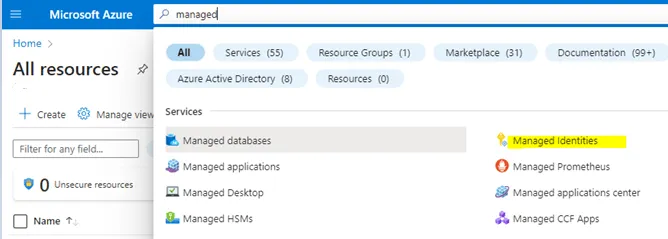
1. Navigate to the right place to create the identity
Azure -> Search -> “Managed identities” -> Select
2. Create the Identity
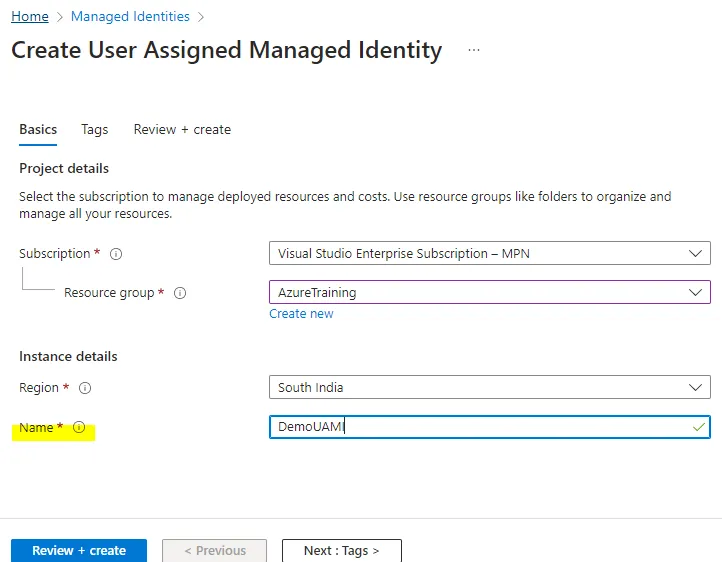
3. Refer to the managed identity in Logic apps
Logic Apps -> identity -> User assigned -> Add -> Select the “User assigned managed identities”, which is created in step 2.
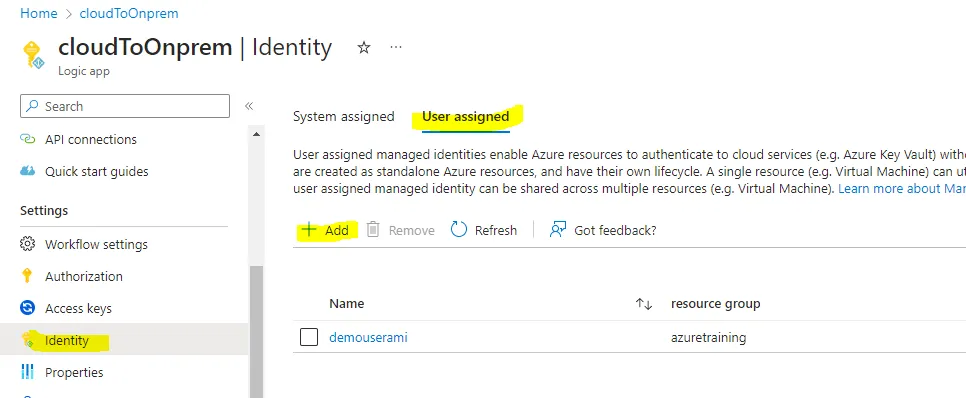
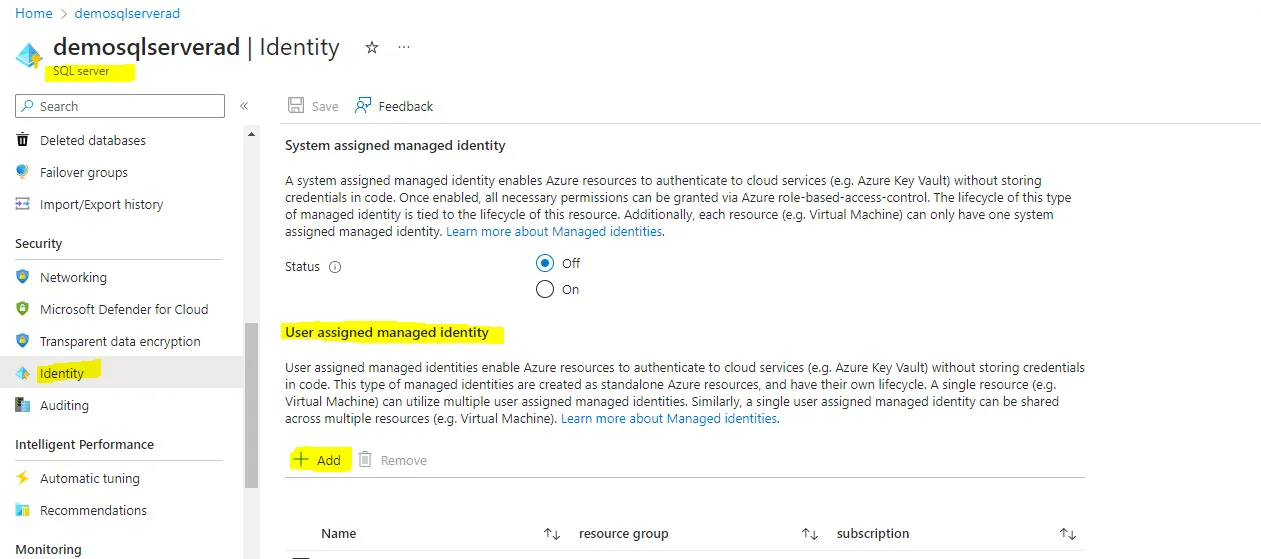
4. Referring the managed identity to the resource needs to be integrated with Logic Apps
SQL Server -> Identity -> User assigned managed identity -> add the identity
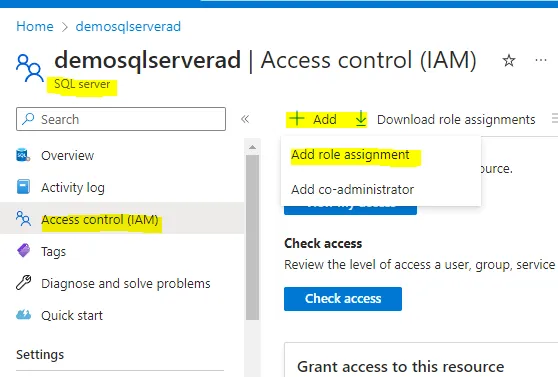
5. Add the role level (as per requirement) to access this server
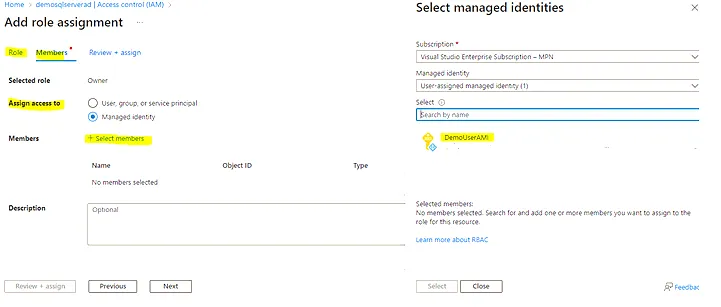
SQL server -> IAM -> Add -> role assignment -> “Select role”-owner -> next -> Assign access to: “Managed Identity” -> select members -> add the managed identity key
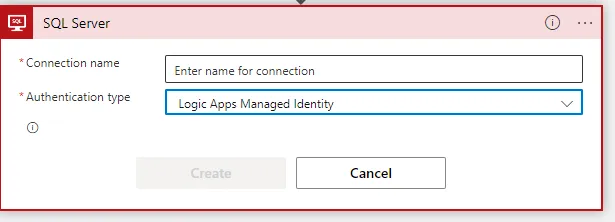
6. Connector (SQL server) configuration in Logic Apps
Select Auth Type: “LogicApps Managed Identity”
7. Provide Server name
Custom -> Fully qualified name of the server
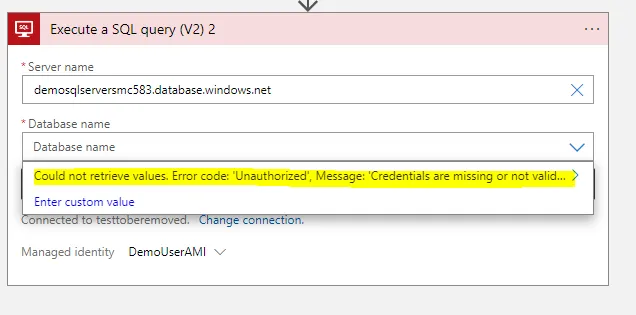
You may get the error mentioned above:
Could not retrieve values. Error code: ‘Unauthorized’, Message: ‘Credentials are missing or invalid.
Inner exception: The credentials provided for the SQL source are invalid.
(Source at demosqlserversmc583.database.windows.net.)
clientRequestId: f5c4ba06-3c94-48bd-9ac7-3a006e627254'.
More diagnostic information: x-ms-client-request-id is ‘D5DDDD75-D778-438D-BC88-59264BDA12E3’.
To resolve this problem, you have the following options:
- Assign a server-level role that can list all databases to the managed identity.
- In the SQL trigger or action, enter the database name using the Enter custom value
8. Logging in to SQL Managing Studios
Open the SSMS (SQL Management Studios) -> Login with “Azure Active Directory – Universal with MFA” -> Provide your AD user name and the Azure SQL server name à Connect
managed identity key refers to the AD credentials
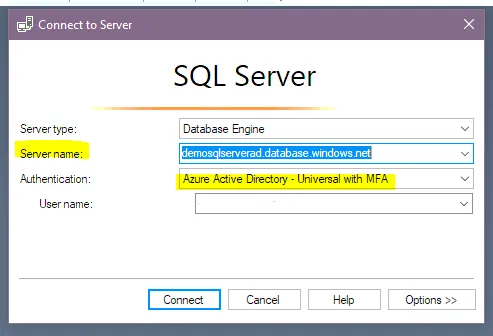
9. Create a login
Open a new query window -> Execute the below query (at master level) to provide the server-level access:
CREATE LOGIN <Managed Identity Name> FROM EXTERNAL PROVIDER --fetch the Managed Identity from the AAD
ALTER SERVER ROLE ##MS_ServerStateManager## ADD MEMBER <Managed Identity Name>
<Managed Identity Name> -- DemoUserAMI
Run the below-highlighted query to check your access level :
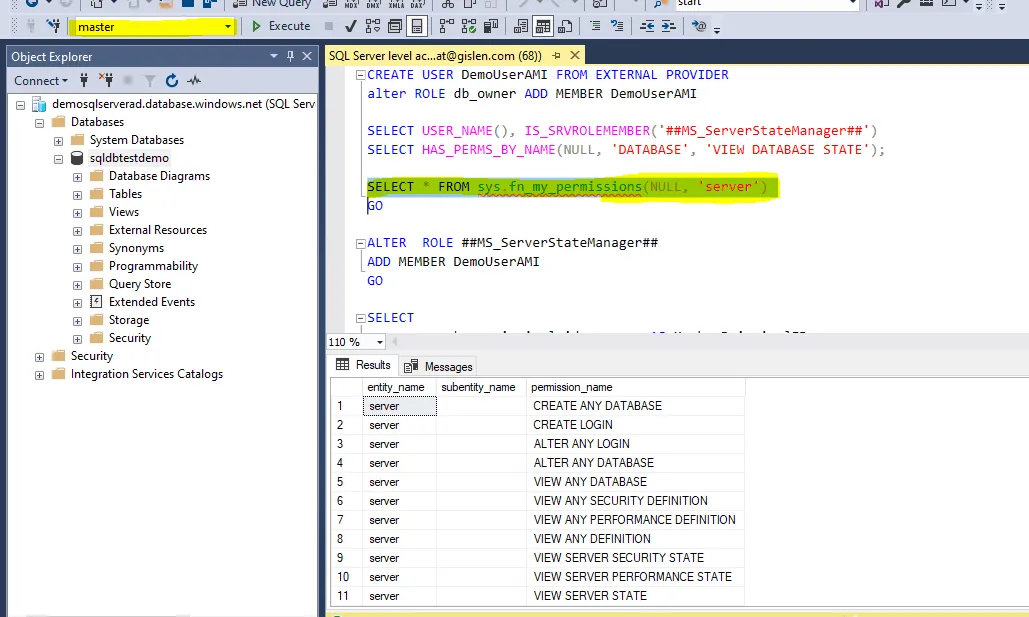
1o. Try the SQL connector
Now go to Logic Apps and try to configure the SQL connector: it will work now:
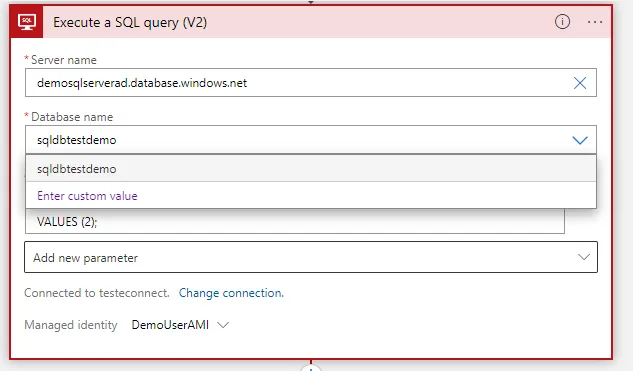
Now the connections are correctly established — and Logic Apps can access the Azure SQL server without feeding any credentials by using this “Managed Identity” key.
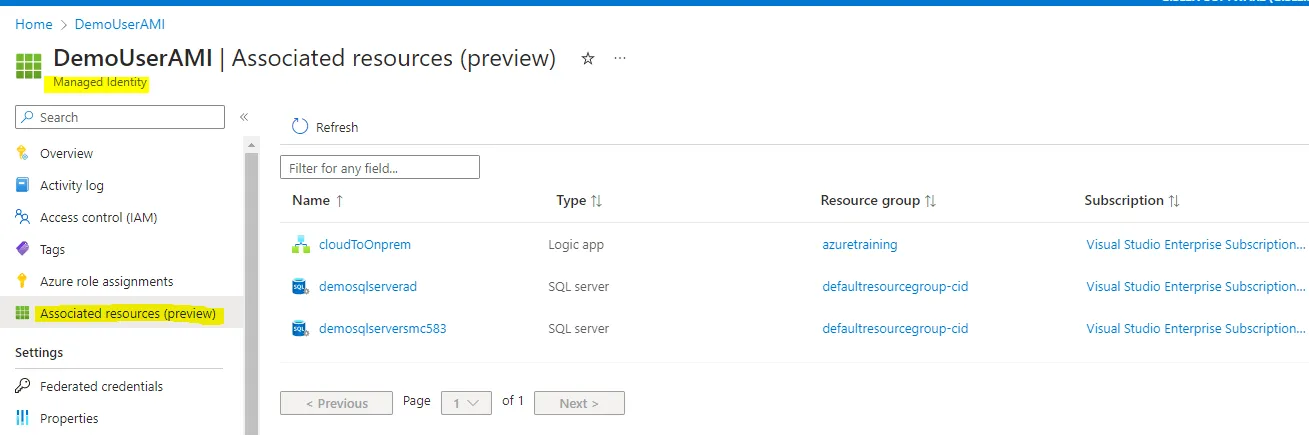
11. View the connected resources
- Resources connected to the specific identity key can be viewed here:
Conclusion
To conclude, Managed Identities for Azure resources represent a substantial stride towards more secure, automated, and manageable identity and access management within Azure infrastructure. By simplifying authentication, they are a potent tool for manually eliminating the complexity and vulnerability associated with managing service principals and credentials.
Whether you opt for system-assigned or user-assigned Managed Identities, you are taking an essential step towards a more secure Azure environment. Through the comprehensive guide provided above, we hope to have made establishing and implementing these identities more transparent and approachable.
However, it is essential to remember that every organization’s needs and context differ. Therefore, understanding the ins and outs of these identities, how they interact with different Azure services, and their limitations is crucial in making informed decisions on their deployment.
As technology evolves and the threat landscape diversifies, tools like Managed Identities will play an increasingly significant role in shaping the future of cloud security. Consequently, we recommend staying abreast of these developments and continuously updating your knowledge and strategies to leverage the maximum potential of Managed Identities in Azure.
Do you need help?
Do you need help with Logic Apps or Systems Integration in general? Don’t hesitate to contact us at Gislen Software. Our expertise and experience ensure a smooth and efficient Systems Integration. Whether you face technical challenges or need strategic guidance, we are here to help you reach your goals. Contact us today to discuss how we can support your upgrade!
Frequently Asked Questions
What are managed identities in Azure and why are they important?
Managed identities are a feature of Azure Active Directory that allows Azure services to authenticate to other services automatically, without storing credentials in code or configuration files. They are service principals of a special type that can only be used with Azure resources. By removing the need to manage secrets, connection strings, or passwords manually, they reduce security risks and simplify identity management across Azure deployments.
What is the difference between system-assigned and user-assigned managed identities?
A system-assigned managed identity is created and tied directly to a specific Azure resource. Its lifecycle is bound to that resource, so when the resource is deleted, the identity is deleted automatically. It cannot be shared across multiple resources. A user-assigned managed identity is created as a standalone Azure resource and can be assigned to one or more service instances simultaneously. This makes it the preferred choice when multiple resources need to share the same identity for authentication.
When should I choose a user-assigned managed identity over a system-assigned one?
Choose a user-assigned managed identity when you need a single identity to be shared across multiple Azure resources, such as a Logic App, a virtual machine, and a blob storage account all needing access to the same Azure SQL database or Key Vault. System-assigned identities are simpler to set up for single-resource scenarios, but they cannot be shared, which makes them less practical when consistent access needs to span several services.
How does a managed identity allow Logic Apps to connect to Azure SQL without credentials?
Once a user-assigned managed identity is created and attached to both the Logic App and the SQL Server resource, the Logic App can authenticate using the LogicApps Managed Identity option in the SQL connector configuration. Rather than passing a username and password, the Logic App presents the managed identity token to Azure AD, which then authorises access based on the role assignments configured on the SQL Server. No credentials are stored anywhere in the workflow.
What role assignments are needed for a managed identity to access Azure SQL?
The managed identity needs to be added to the SQL Server’s Identity settings and assigned an appropriate role through the SQL Server’s IAM (Identity and Access Management) configuration. At minimum, it needs a role that allows it to list databases and perform the required operations. Additionally, a login must be created at the SQL master database level using the CREATE LOGIN query with the FROM EXTERNAL PROVIDER clause, and the identity should be added to the appropriate server role to confirm the correct access level.
What does the unauthorised error mean when configuring the SQL connector in Logic Apps?
The error indicating that credentials are missing or invalid typically means the managed identity has not yet been granted the necessary server-level permissions in SQL. To resolve it, either assign a server-level role that allows the identity to list all databases, or manually specify the database name using the Enter Custom Value option in the SQL trigger or action. Running the CREATE LOGIN and ALTER SERVER ROLE queries in SQL Server Management Studio for the managed identity usually resolves this.
How do I log in to SQL Server Management Studio to run the required identity queries?
Open SQL Server Management Studio and choose Azure Active Directory with MFA as the authentication method. Provide your Azure AD username and the fully qualified name of the Azure SQL server. Once connected, open a new query window against the master database and run the CREATE LOGIN and ALTER SERVER ROLE queries, replacing the placeholder with your managed identity name. This grants the managed identity the server-level access it needs for the Logic App connector to work correctly.
Can I view which resources are connected to a specific managed identity?
Yes. In the Azure portal, navigate to the managed identity resource and you can see the list of Azure resources that have been assigned that identity. This gives you a clear view of which services are using the identity for authentication, making it easier to audit access, manage permissions, and understand the scope of the identity across your Azure environment.
Are managed identities suitable for all Azure services and authentication scenarios?
Managed identities work with any Azure service that supports Azure AD authentication, which covers a wide range of services including Key Vault, SQL Database, Service Bus, Storage, and many others. However, they are specific to Azure resources and cannot be used outside the Azure platform. For non-Azure services or scenarios requiring cross-platform identity management, alternative approaches may be needed. Within Azure, they are the recommended approach for service-to-service authentication wherever supported.
What are the long-term security benefits of adopting managed identities across Azure deployments?
Managed identities eliminate the need to store, rotate, or audit credentials manually, which significantly reduces the risk of credential leakage or misuse. They provide granular, role-based access control that can be reviewed and updated centrally. As the threat landscape evolves, removing static credentials from code and configuration files remains one of the most effective ways to reduce attack surface. Organisations that adopt managed identities consistently across their Azure infrastructure are better positioned to meet security and compliance requirements over time.