

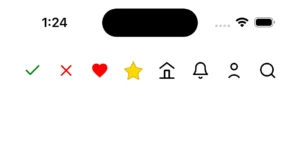
React Native doesn’t directly support rendering SVG. As developers, our lives can’t move forward without SVGs. So, we need to depend on libraries like react-native vector icons to render icons, but we’re restricted to using only the icons provided by those libraries. This blog will help you render your customised SVG icons in React Native.
Using react-native-svg:
Prerequisites:
- ➤ A basic React Native project setup
- ➤ Familiarity with React Native components.
- ➤ The
react-native-svglibrary is required for rendering SVG icons
Why do we need react-native-svg library? React Native doesn’t know how to process SVG elements. So, we need this library to help React Native understand and render SVG elements.
Svg elements like
<svg>, <path> or <circle> are parts of the web’s DOM and SVG specification. React Native doesn’t natively understand or support these elements.So, we need this library, which provides React components (like
<Svg>, <Path> etc.) that map to native drawing APIs on iOS, Android, macOS and Windows.Let’s get into it, Install react-native-svg: Open your terminal, navigate to your project’s root folder, and run the commands below.
Using npm:
npm install react-native-svg
Using yarn:
yarn add react-native-svg
Link native code: (For iOS only)
cd ios && pod install
import Svg, { Circle, Path } from 'react-native-svg';

const UserIcon = () => (
  <Svg
    width="24"
    height="24"
    viewBox="0 0 24 24"
    fill="none"
    stroke="black"
    strokeWidth="2"
    strokeLinecap="round"
    strokeLinejoin="round"
  >
    <Circle cx="12" cy="7" r="4" />
    <Path d="M5.5 21a8.38 8.38 0 0113 0" />
  </Svg>
);

export default UserIcon;
Note: Look at the SVG elements; they don’t look like the default SVG elements in the SVG file, right? Yes, you should use Pascal case for elements, just as we usually do for React components. You can pass SVG properties as props, like the above snippet (width, height, etc. are passed as props). Here is some more info about the usage. Import into your component: App.tsx
import UserIcon from './components/UserIcon';

function App() {
  return (
    <>
      <UserIcon />
    </>
  );
}

export default App;
Rebuild and run the app… Boom, now you can see the icon in your app.
Using react-native-svg-transformer
Prerequisites:
- ➤ A basic React Native project setup
- ➤ Familiarity with React Native components.
- ➤ The
react-native-svglibrary is required for rendering SVG icons - ➤ The
react-native-transformerlibrary is required if you want to import.svgfiles. - Why do we need react-native-svg-transformer? We have already seen the purpose of the react-native-svg library in the above section. React native doesn’t natively support importing SVG files. It will throw an error if we use it. This library helps React Native import SVG files.
react-native-svg-transformer acts as a custom Metro bundler transformer. It tells Metro how to handle .svg files – converting them into valid JSX components using react-native-svg under the hood.Let’s get into it, Install react-native-svg-transformer: Note: This libraryrequires react-native-svg; ensure you have installed itby following these steps. Open your terminal, navigate to your project’s root folder, and run the commands below.
Using npm:
npm install -save-dev react-native-svg-transformer
Using yarn:
yarn add --dev react-native-svg-transformer
This library is added as dev dependency because:
- It’s only needed during development/build time, not in the actual running app.
- It helps Metro (the React Native bundler) transform
.svgfiles into JS components. - It doesn’t get bundled into the final production JS budle – your actual app just uses the transformed result.
Configure bundler to use the transformer:
Modify your metro.config file as described below:
const { getDefaultConfig, mergeConfig } = require('@react-native/metro-config');

const defaultConfig = getDefaultConfig(__dirname);
const { assetExts, sourceExts } = defaultConfig.resolver;

/**
 * Metro configuration
 * https://reactnative.dev/docs/metro
 *
 * @type {import('@react-native/metro-config').MetroConfig}
 */
const config = {
  transformer: {
    babelTransformerPath: require.resolve(
      'react-native-svg-transformer/react-native',
    ),
  },
  resolver: {
    assetExts: assetExts.filter(ext => ext !== 'svg'),
    sourceExts: [ ...sourceExts, 'svg' ],
  },
};

module.exports = mergeConfig(defaultConfig, config);
For TypeScript,
Add the following in the declarations.d.ts file (Create this file if it doesn’t exist).
declare module '*.svg' {
  import React from 'react';
  import { SvgProps } from 'react-native-svg';
  const content: React.FC<SvgProps>;
  export default content;
}
Configure SVGR: (Optional) This is an optional step; you can customise how the SVG image gets transformed to React/React native. Read more about the configuration: Configuring SVGR and SVGR options If you want to configure, you have to add .svgrrc file in your project root folder and add configurations based on your need.
Add SVG file in your project under assets folder:
user.svg
<svg xmlns="http://www.w3.org/2000/svg" viewBox="0 0 24 24" fill="none"
     stroke="black" stroke-width="2" stroke-linecap="round" stroke-linejoin="round">
  <circle cx="12" cy="7" r="4" />
  <path d="M5.5 21a8.38 8.38 0 0113 0" />
</svg>
Import into the component:
app.tsx
import User from './assets/user.svg';

function App() {
  return (
    <>
      <User />
    </>
  );
}

export default App;
As you can see, the import now works directly for SVG files into the components. Now rebuild and run, and you can see the icons. Conclusion: Choosing the right library depends on your project’s requirements. If your app uses only a few simple icons, then using just the first library is more than enough — it keeps your setup lightweight and clean. However, suppose your project involves a large number of SVG icons or you plan to share SVG assets across platforms like React or Angular web apps. In that case, it’s highly recommended to include a second library as well. It offers better scalability and asset reusability across projects.
In short, go minimal if your needs are simple – go scalable if you’re thinking long-term and cross-platform.
References:
- react-native-svg – A library to render SVG elements in React Native.
- react-native-svg-transformer – Allows importing .svg files as components in React Native projects.
Find the demo project on my GitHub.
Frequently Asked Questions
Why can’t React Native render SVG elements natively?
SVG elements such as svg, path, and circle are part of the web’s DOM and SVG specification. React Native does not natively understand or support these elements because it renders to native platform APIs, not a browser DOM. To work with SVGs in React Native, you need a library that bridges this gap by mapping SVG elements to native drawing APIs on iOS, Android, macOS, and Windows.
What is react-native-svg and why is it needed?
react-native-svg is a library that provides React components such as Svg, Path, Circle, and others that map directly to native drawing APIs. It allows React Native to understand and render SVG elements that it would otherwise not be able to process. It is a required dependency for both approaches covered in this guide.
What is the difference between react-native-svg and react-native-svg-transformer?
react-native-svg enables React Native to render SVG elements by providing compatible React components. react-native-svg-transformer is a separate tool that acts as a custom Metro bundler transformer, allowing you to import .svg files directly into your components just like any other asset. The transformer depends on react-native-svg to work, so both are needed if you want to import .svg files directly.
When should I use react-native-svg alone, without the transformer?
If your app uses only a few simple icons and you are comfortable writing SVG markup directly as React components using Pascal case elements such as Svg, Path, and Circle, then react-native-svg on its own is sufficient. It keeps your setup lightweight and clean, with no additional bundler configuration required.
When should I add react-native-svg-transformer as well?
When your project involves a large number of SVG icons, or when you plan to share SVG asset files across platforms such as React web or Angular apps. The transformer allows you to import .svg files directly as components, which improves scalability and makes it much easier to reuse assets across projects without rewriting them as React components each time.
Why is react-native-svg-transformer added as a dev dependency?
Because it is only needed during development and build time, not in the running application itself. It helps Metro, the React Native bundler, transform .svg files into JavaScript components during the build process. The transformer does not get bundled into the final production JavaScript bundle; your app only uses the transformed result.
Do SVG element names need to change when using react-native-svg?
Yes. When writing SVG elements as React components using react-native-svg, you must use Pascal case. For example, svg becomes Svg, path becomes Path, and circle becomes Circle. SVG properties such as width, height, viewBox, and strokeWidth are passed as props, following standard React component conventions.
Is the SVGR configuration step required?
No, it is optional. SVGR configuration allows you to customise how SVG files are transformed into React Native components during the build process. If the default transformation suits your needs, you can skip this step entirely. If you need specific adjustments, you can add a .svgrrc file in your project root folder and configure it according to your requirements.
Do I need to run pod install after installing react-native-svg?
Yes, but only for iOS. After installing react-native-svg, navigate into the ios folder and run pod install to link the native code. This step is not required for Android, as the linking happens automatically during the build process.
What should I add for TypeScript support when using the transformer?
You need to add a type declaration for .svg files. Create a declarations.d.ts file in your project if it does not already exist, and declare the svg module with the appropriate type using React.FC and SvgProps from react-native-svg. This tells TypeScript how to handle .svg file imports and prevents type errors during development.