
In this blog post, we will explore how to use managed identity to ensure the secure access of Azure Key Vault secrets within Azure Logic Apps.
Managed Identity, a feature of Azure’s identity platform, provides a seamless and highly secure way for applications and services to authenticate themselves in Azure Active Directory. By combining Azure Key Vault and Managed Identity, we can establish a robust and secure pipeline for accessing our Logic Apps’ secrets without exposing sensitive information in configuration files or code.
A system-assigned managed identity (often referred to as just “system-assigned identity”) is a feature in Microsoft Azure that provides an identity for a resource in the Azure Active Directory (Azure AD).
- Lifespan: The identity is closely tied to the lifespan of the Azure resource it’s created for. When the resource is deleted, the system-assigned identity is also deleted.
- Security: It enhances security by allowing Azure resources to interact with other Azure services and resources without needing explicit credential management (e.g., usernames, passwords, or secrets).
- Granular Access Control: Specific permissions can be assigned to the managed identity at the resource level, ensuring that it only has precisely the access needed to other Azure resources and services.
- Use Cases: System-assigned managed identities are commonly used when you have Azure resources that need to access Azure services or resources securely, such as accessing Azure Key Vault, SQL databases, or other APIs without storing credentials in code or configuration files.
How to do it:
Step 1: Create a Logic App
The first step in our journey is to create an Azure Logic App. This will serve as the foundation for our secure secret retrieval process.

Step 2: Create a Secret in the Vault
Before we can access a secret, we must have one to retrieve.
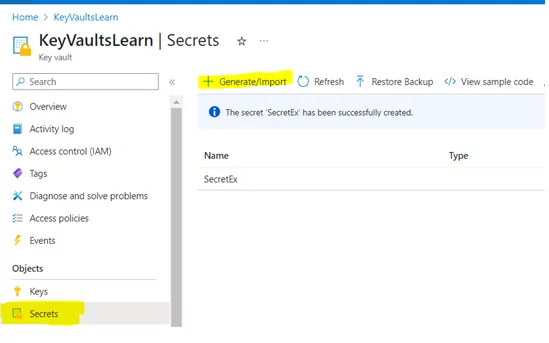
Create a secret within your Azure Key Vault: Go to KeyVault ->Secrets->Generate/Import
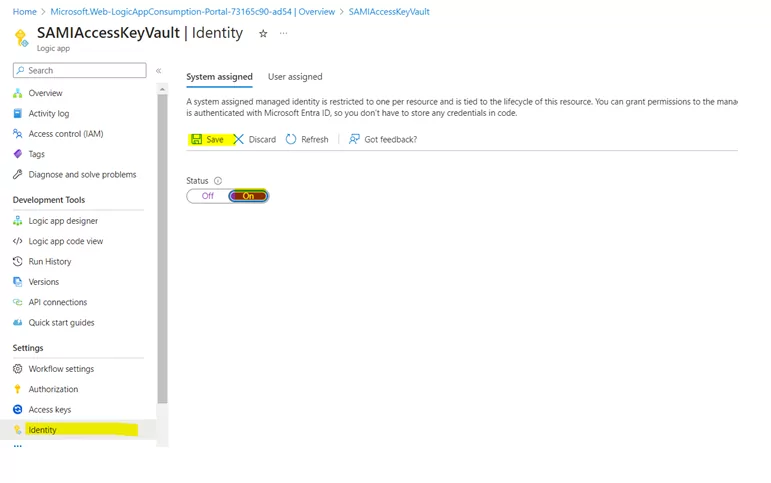
Step 3: Enable the System-Assigned Managed Identity in Logic App
To enable secure communication, allow the system-assigned Managed Identity in your Logic App. This Managed Identity will be a trusted intermediary between your Logic App and Azure Key Vault.
Step 4: Add the Logic App to the ‘Access Policy’ in Key Vault
With your Logic App now having a Managed Identity, we need to grant it the necessary permissions to access secrets in your Azure Key Vault. We’ll walk you through the process of adding your Logic App to the ‘Access Policy’ of the Key Vault.
1) Add the Logic App to the Access Policy.

2) Specify the required permissions.
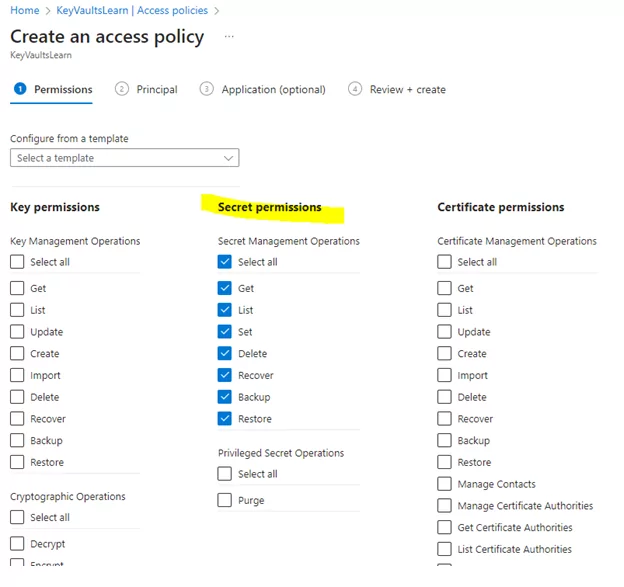
3) Select your Logic App’s name from the dropdown.
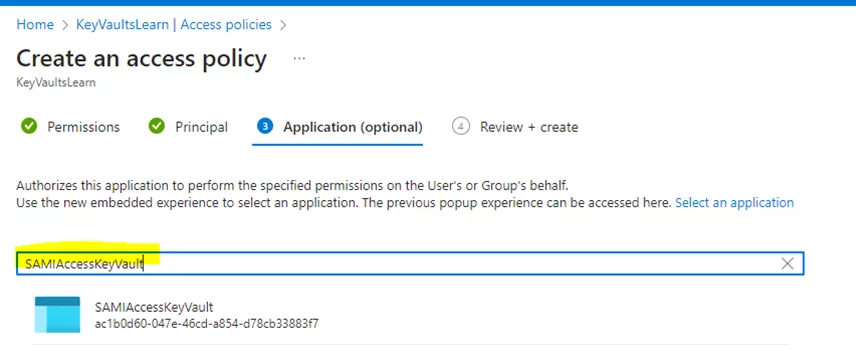
Mandatory Points to Note:
While retrieving secrets securely, there are essential considerations to ensure the process remains locked down:
1) Ensure access policies are assigned directly to the Logic App’s name (not on behalf of a username).
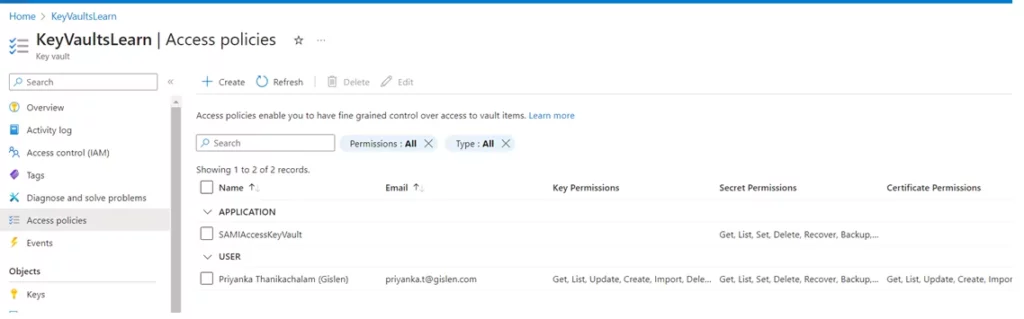
2) Add role assignments and verify them in the Logic App’s Identity tab.
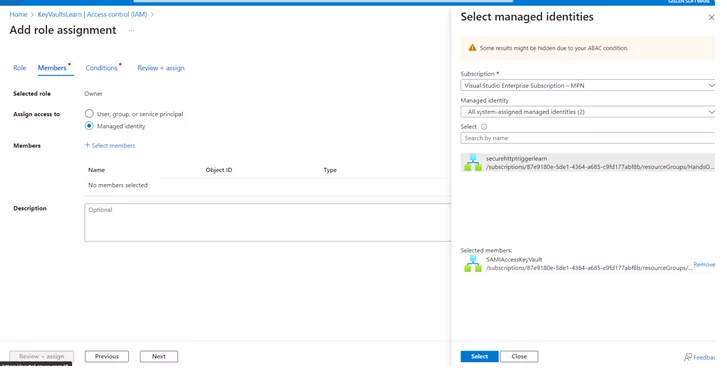

3) Verify the role assignment in logic App (Identity tab):
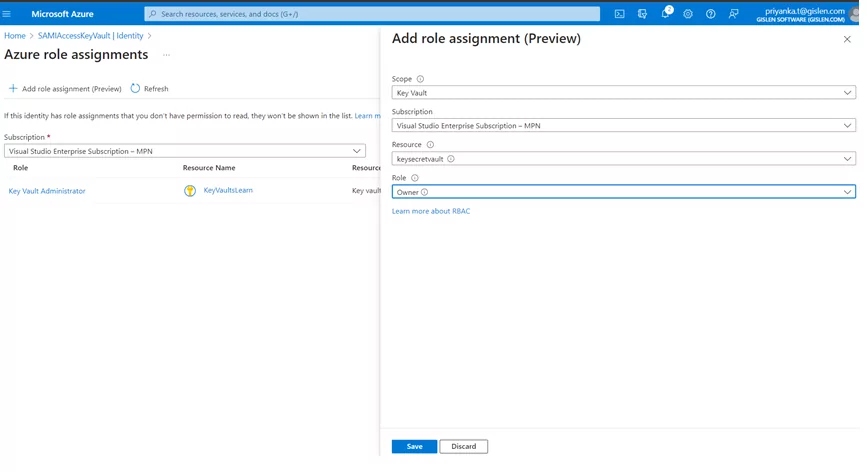
Once all the above setup is done – Proceed with the connector’s configuration – To access the Key Vault Secret.
Method 1: Retrieve the Key Vault Secret Using an HTTP Connector
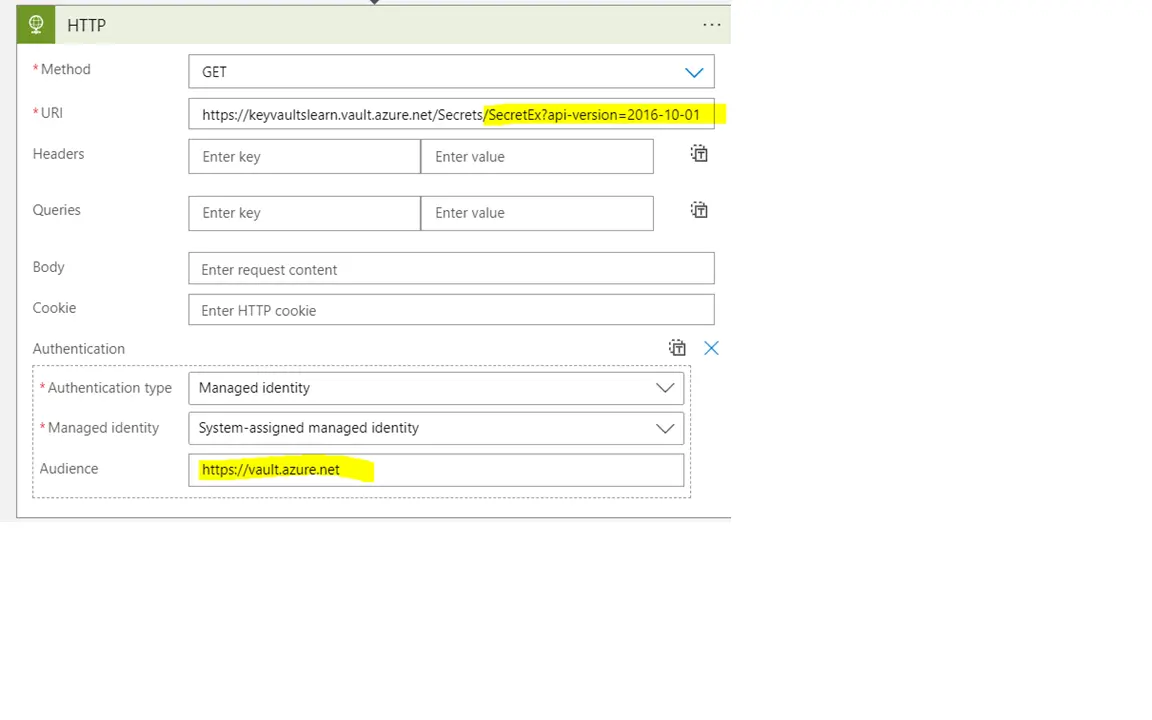
Use the HTTP connector in the logic app to securely retrieve your desired Key Vault secret.
The format of the URI should be:
Uri: https://<Name of the Key Vault>.vault.azure.net/secrets/<Name of the Secret Name>?api-version=2016-10-01
Outcome
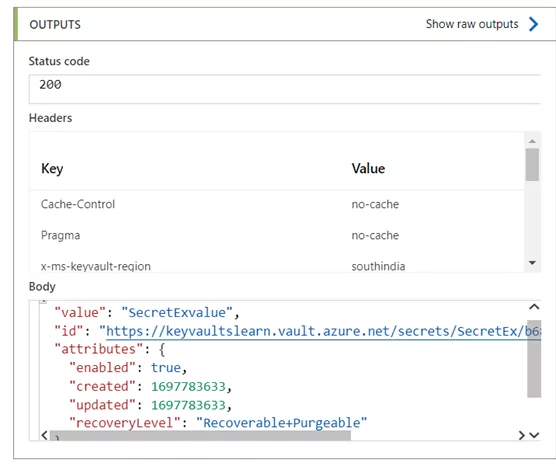
In Azure Logic Apps, the HTTP connector is versatile for making secure requests and fetching data. This enables communication with Key Vault securely.
Method 2: Retrieve the Key Vault Secret Using the ‘Get Secret’ Connector
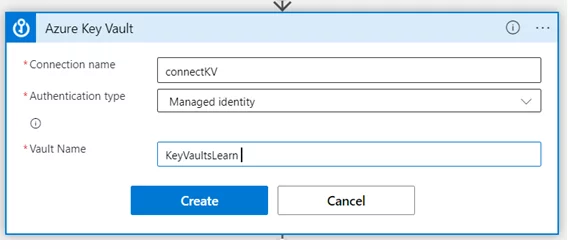
Using the ‘Get Secret’ connector in Logic Apps to retrieve the secret from Azure Key Vault securely:
1) Add the Get Secret connect in the workflow – Configure the connection with managed identity authentication & the respective key vault name
2) Next, select the desired secrets from the dropdown list under “Name of the Secret”.
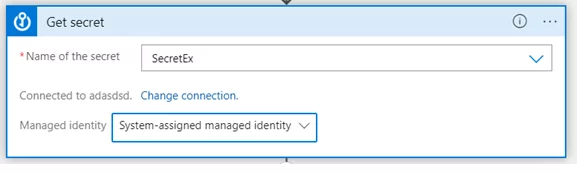
Outcome
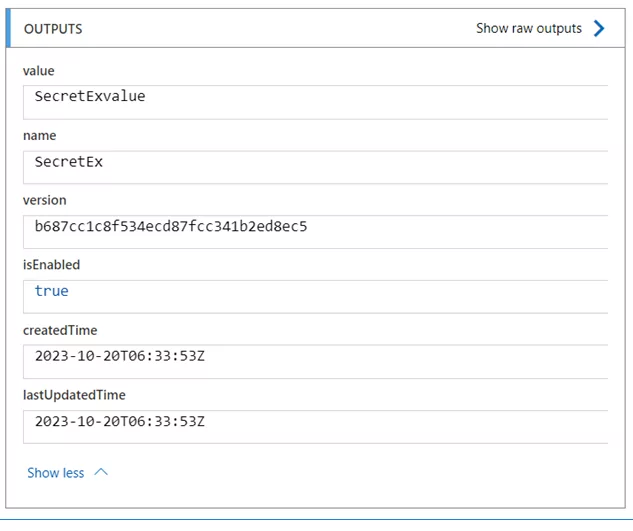
The ‘Get Secret’ connector within Azure Logic Apps is a dedicated key to access the Azure Key Vault secrets. Through this exploration of this connector, it simplifies the process of securely accessing secrets, ensuring that sensitive information remains safe.
Hide Secret Output Values
In the above methods, the fetched secret value is explicitly visible in the integration flow, to make it confidential we can make use of the “Secure Outputs” configuration in that action, to hide the output value.
To hide the output values:
1) In the action, click on the ellipsis icon (…), then select “Settings”.
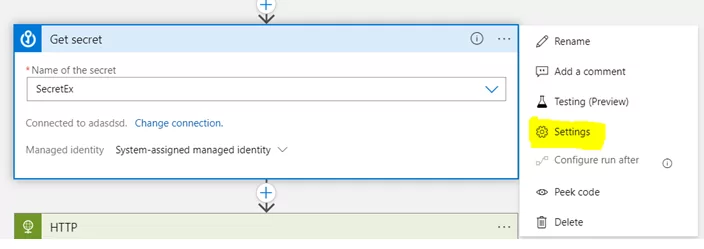
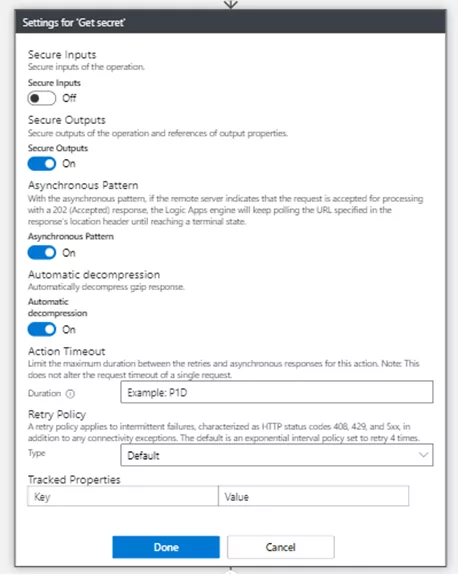
2) Now turn on the Secret Output and click on DONE.
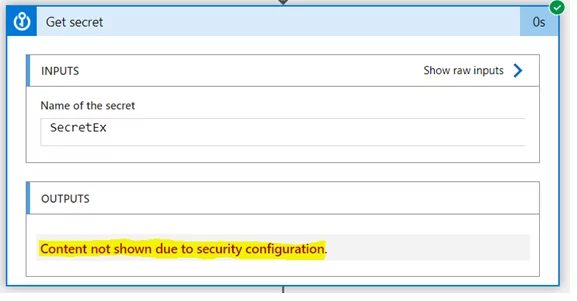
3) When you execute the flow, the secret value is fetched from, but it’s not visible to us in the flow; the value can be used furthermore without exposing the secret value.
Conclusion
Following these steps, users can seamlessly integrate Azure Key Vault Secrets into their Logic Apps, establishing a secure pipeline without compromising sensitive data in configuration files or code. The versatility of connectors, particularly the HTTP connector and the ‘Get Secret’ connector, underscores the flexibility and security achieved through this integration, ultimately contributing to a more efficient and reliable data retrieval process. Using Azure Key Vault Secrets is a powerful feature to improve security.
Do you need help?
Do you need help using Azure Key Vault Secrets, Logic Apps or Systems Integration? Don’t hesitate to contact us at Gislen Software. Our expertise and experience ensure a smooth and efficient Systems Integration. Whether you face technical challenges or need strategic guidance, we are here to help you reach your goals. Contact us today to discuss how we can support your upgrade!
Frequently Asked Questions
What is Managed Identity and why is it preferred for accessing Key Vault secrets?
Managed Identity is a feature of Azure’s identity platform that allows applications and services to authenticate themselves in Azure Active Directory without requiring explicit credential management such as usernames, passwords, or secrets stored in code or configuration files. For Logic Apps accessing Key Vault, it removes the risk of exposing sensitive credentials and simplifies the authentication process by letting Azure handle identity lifecycle automatically.
What is a system-assigned managed identity and how does it differ from other identity types?
A system-assigned managed identity is an identity created directly for a specific Azure resource, in this case a Logic App. Its lifespan is tied to that resource: when the Logic App is deleted, the identity is automatically deleted as well. It is distinct from user-assigned managed identities, which are created independently and can be shared across multiple resources. System-assigned identities are well suited to scenarios where one resource needs secure, dedicated access to another Azure service without credential sharing.
What are the key steps to set up secure Key Vault access from a Logic App?
The setup involves four main steps. First, create the Logic App. Second, create the secret in Azure Key Vault. Third, enable the system-assigned managed identity on the Logic App. Fourth, add the Logic App to the Key Vault access policy with the required secret permissions. Once these are in place, the Logic App can retrieve secrets securely using either the HTTP connector or the dedicated Get Secret connector.
What is the difference between using the HTTP connector and the Get Secret connector?
Both connectors retrieve secrets securely using managed identity authentication, but they differ in approach. The HTTP connector is a general-purpose connector that makes a direct REST API call to the Key Vault endpoint using a formatted URI. It is flexible and can be adapted for various API interactions beyond Key Vault. The Get Secret connector is a dedicated Logic Apps connector built specifically for Key Vault access, offering a simpler configuration experience with a dropdown to select the secret by name, making it more straightforward for teams less familiar with REST API calls.
How do I format the URI when using the HTTP connector to retrieve a Key Vault secret?
The URI follows this structure: https://[name of the key vault].vault.azure.net/secrets/[name of the secret]?api-version=2016-10-01. Replace the key vault name and secret name placeholders with your actual values. The HTTP connector uses managed identity for authentication, so no additional credentials need to be embedded in the request itself.
Why is it important to assign the access policy directly to the Logic App name rather than a user account?
Assigning the access policy to a user account ties the permission to an individual rather than the service. If that user leaves the organisation or their account is modified, the Logic App could lose access unexpectedly. Assigning the policy directly to the Logic App’s managed identity ensures that access is controlled at the service level, is independent of individual accounts, and follows the principle of least privilege by granting only what the Logic App specifically requires.
How can I verify that the managed identity and role assignment are correctly configured?
After enabling the system-assigned managed identity on the Logic App and adding it to the Key Vault access policy, you can verify the role assignment by navigating to the Logic App’s Identity tab in the Azure portal. This tab shows the managed identity status and any role assignments that have been applied. Confirming this before running the workflow helps catch configuration errors early and avoids runtime failures caused by missing permissions.
What is Secure Outputs and why should it be used when retrieving secrets?
When a Logic App retrieves a secret from Key Vault, the fetched value is visible in the run history by default. Secure Outputs is a setting available on individual actions that hides the output value from the run history, preventing the secret from being exposed to anyone with access to the Logic App’s execution logs. It is enabled through the action’s Settings menu and is strongly recommended for any action that handles sensitive data such as API keys, passwords, or connection strings.
Can the secret value still be used in subsequent workflow steps after enabling Secure Outputs?
Yes. Enabling Secure Outputs only hides the value from the visible run history; it does not prevent the value from being passed to other actions within the same workflow. Downstream steps can still reference and use the secret value as needed, but it will not be displayed or logged in a readable form. This allows workflows to function fully while keeping sensitive data protected throughout the execution.
Is this approach suitable for production Logic App workflows handling sensitive data?
Yes. Combining managed identity authentication, Key Vault access policies with least-privilege permissions, and Secure Outputs creates a robust and production-ready approach to secret management in Logic Apps. It removes hardcoded credentials from code and configuration, reduces the attack surface, and ensures that sensitive values are not unnecessarily exposed in logs or run histories. It is the recommended pattern for any Logic App workflow that needs to handle secrets securely in a production environment.